

The GeoVue Interactive Report
Open the Demo Report
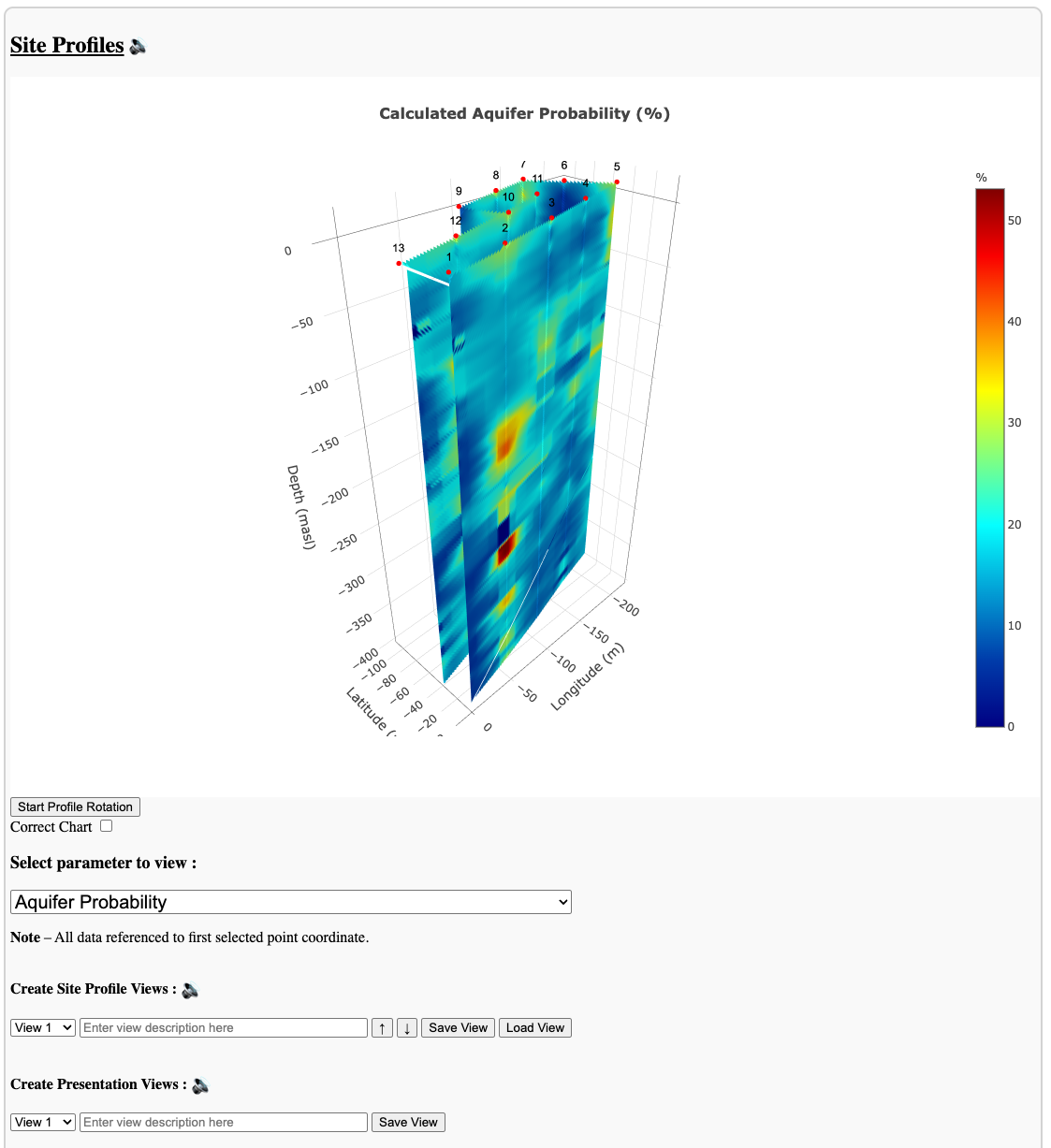
Watch Interactive Report Instructional Video
The GeoVue App
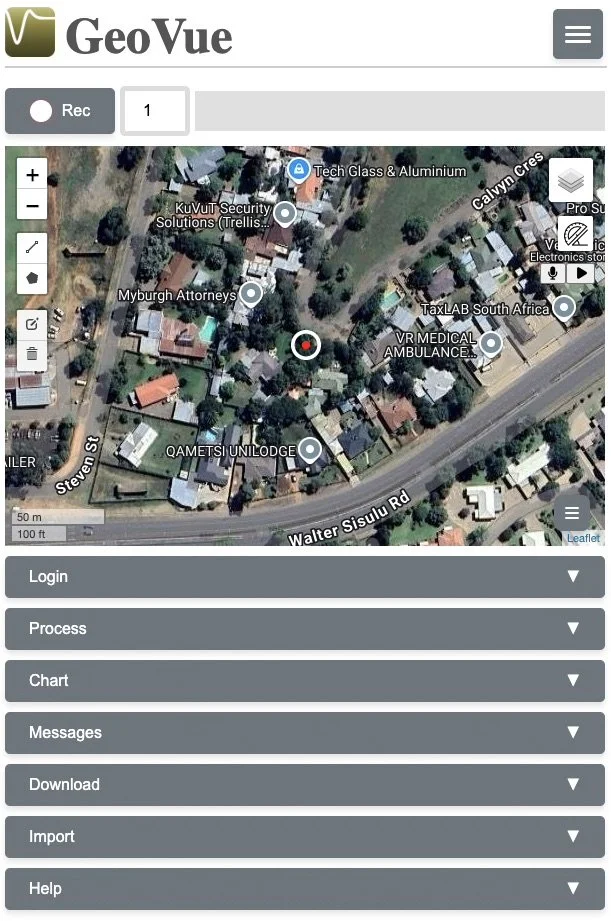
Launch the GeoVue App
Watch the Instructional Video here
Work Flow
A simplified guide on how to use the GeoVue app
GeoVue User Guide
1. Create Your Account
Download the GeoVue app and set up your account.
2. Build Your Project
Create a new project inside the app.
Switch to satellite view to map your survey area.
Save your project once complete.
If your survey site does not have internet access, switch your device to offline recording mode before leaving.
3. Purchase Tokens
Calculate how many survey points and how much depth you require.
Purchase the appropriate number of tokens before heading to the site.
4. Open Your Project
Launch the GeoVue app and open your saved project.
Navigate to your first survey point using the map.
5. Install the Ground Pins
Insert two metal pins into the ground:
The first pin is your main recording pin (mark this location with paint or a tag).
The second pin should be placed approximately 2 metres (6 feet) away.
6. Connect the Cables
Clip the black cable to the main recording pin.
Clip the red cable to the second pin.
Connect the cable to your phone or recording device.
7. Record the Survey
Select the “Default” setting in the top bar if visible.
Press REC to begin recording.
You now have 30 seconds to complete 10 impacts.
Recommended method:
Strike the ground
Pause for 1-second
Strike again
Pause for 1-second
Repeat until you reach 10 strikes. Strikes should be happening every 2-3 seconds.
The green recording bar will move automatically while recording.
Understanding Your Results
PASS
If you receive a Pass notification:
The data quality is suitable for processing.
The app will confirm how many strikes were successfully recorded.
The survey point will automatically appear on your map.
You can now:
Unclip cables
Remove pins
Move to the next survey point
FAIL
If you receive a Fail notification:
This usually means underground electrical interference is present (e.g., electric fences, buried cables, pumps, rail lines).
Follow this process:
Retry at the same location.
If it fails again, move both pins approximately 1 metre away.
Re-mark the new location.
Reconnect and repeat the 10 impacts.
In most cases, this resolves the issue.
Continued Fails
If you continue receiving fails:
Replace your recording cables (always carry 2–3 spare sets).
Try again.
In rare cases, move further away from that location and retry.
Complete Your Survey
Continue the process until all planned survey points have been recorded.
Once complete, upload your data for processing.
Your interactive 2D and 3D report will be delivered via email once processing is finished.